free field guide workflows
Claude Setup Checklist for Beginners
Create your Claude account, choose the right plan, and complete your first Cowork task before adding apps or plugins.
Claude Setup Checklist for Beginners
If you are starting from zero, follow this page in order. Begin with Claude on the web. You do not need an API key, a desktop app, a connector, or a plugin for the first setup.
By the end, you will have a Claude account, the Pro plan, and one finished task in Claude Cowork.
What this helps you do
Set up Claude from scratch, understand the difference between Chat and Cowork, complete one low-risk task, and decide whether you need the desktop app or a plugin.
Before you start
You need an email address, a supported browser, and a low-risk task you can easily check. The five official links used in this guide are below.
- Claude web app: https://claude.ai/
- Plans and pricing: https://claude.com/pricing
- Claude Cowork instructions: https://support.claude.com/en/articles/13345190-get-started-with-claude-cowork
- Claude Desktop download: https://claude.com/download
- Claude plugins: https://claude.com/plugins
Open the first link now. Leave this guide open in another tab.
Terms to know
Claude Chat responds to one prompt and follow-up questions. Claude Cowork can plan and work through a multi-step task. Claude Desktop is the computer app. A plugin is an optional package that adds instructions, tools, or connections.
Claude or Claude Cowork?
They live inside the same Claude account.
| Use | What it does | When to pick it |
|---|---|---|
| Claude Chat | Responds to one prompt and your follow-up questions. | Use it for a quick answer, a rewrite, or help thinking through an idea. |
| Claude Cowork | Takes a goal, shows you a plan, works through several steps, and can create finished files. | Use it when you want Claude to complete a small project or repeatable task. |
We are starting in Claude Cowork because it shows you how Claude can do a complete piece of work, not only answer a question.
Cowork is included with paid Claude plans. It uses more of your plan allowance than a simple chat, so use Chat when the job only needs a quick answer.
Step-by-step
Follow the six steps below in order. Stop after each pass check before moving on.
Step 1: Create your Claude web account
- Go to https://claude.ai/.
- Choose Continue with Google or enter your email address.
- Complete the email verification if Claude asks for it.
- Sign in.
- Stop when you see Claude's home screen and the message box.
If Claude shows a security check, let it finish. Do not refresh the page several times.

The public Claude page. Click Try Claude in the upper-right corner, or go directly to https://claude.ai/. Screenshot captured September 5, 2026.
Pass this step: You are signed in and can see a blank message box.
Step 2: Choose the Pro plan
Go to https://claude.com/pricing and choose Pro under Individual.
At the time this guide was updated, Pro costs $20 per month in the U.S. or $200 per year, which works out to about $17 per month. Your price may differ by location and tax.
I recommend Pro for this setup because it includes Claude Cowork, plugins, more usage, and Claude Code. You can also open the upgrade screen directly at https://claude.ai/upgrade.
The Claude API is a separate product with usage-based billing. You do not need it for this guide. For regular, hands-on work in Claude, Pro is usually simpler and more predictable than paying API rates. Very light API use can cost less, so this is not a promise that Pro is cheaper for every person.
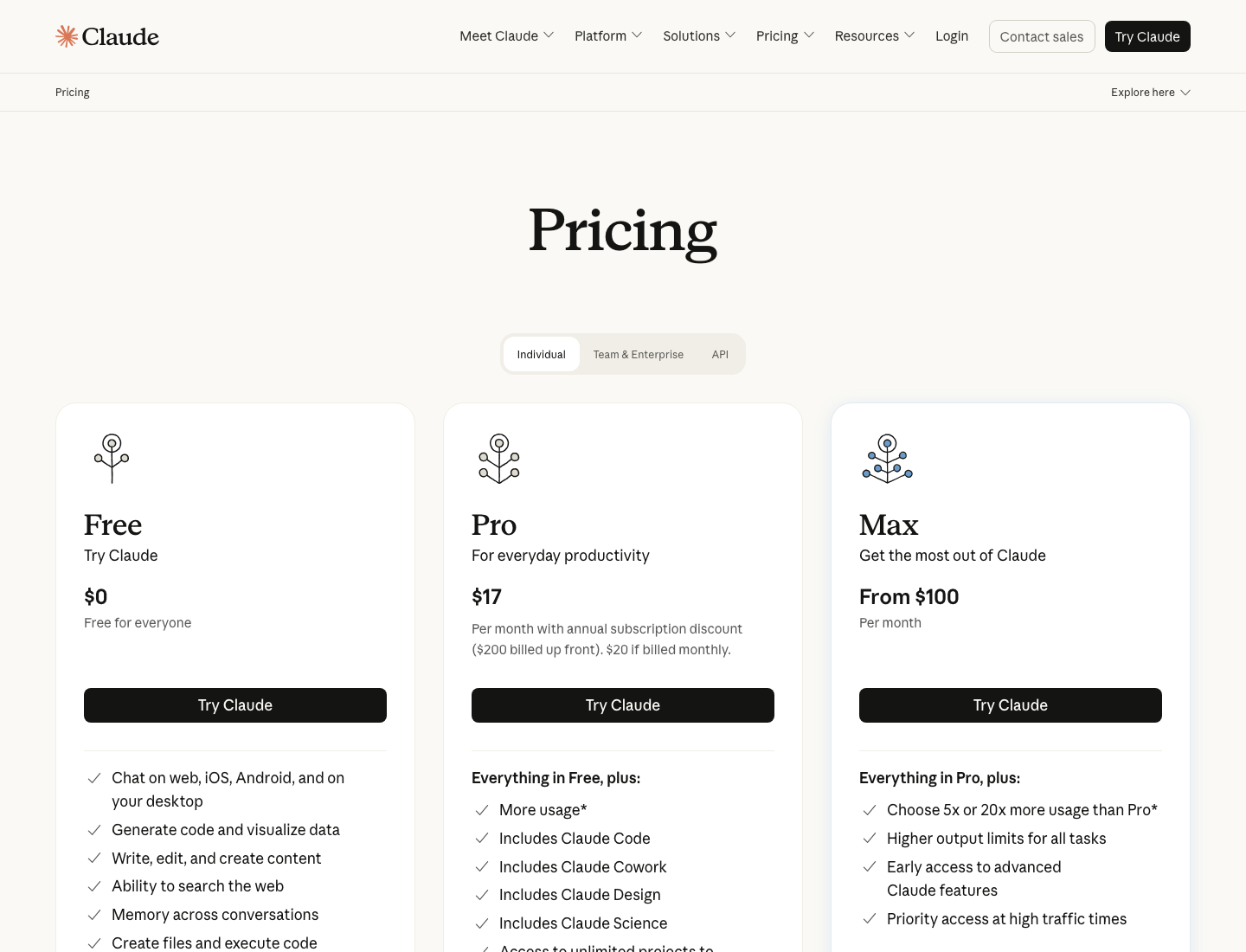
Choose Pro. The pricing page shows that Cowork is included. Screenshot captured September 5, 2026.
Pass this step: Your account menu shows Pro, and Cowork appears near the message box.
Step 3: Start your first Cowork task
- Go to https://claude.ai/new.
- Find the selector near the lower-left corner of the message box.
- Choose Cowork instead of Chat.
- Paste the starter task below.
- Replace the bracketed list with three to five real tasks. Do not include passwords, banking information, private health information, or customer data.
- Submit the task.
- Read Claude's plan before you let it continue.
Copy this
Copy this
I am new to Claude Cowork. Help me turn the tasks below into a one-page weekly work plan.

My tasks:
- [TASK 1]
- [TASK 2]
- [TASK 3]

Before you begin, show me the short plan you will follow.

For this first test:
- do not use connectors
- do not open other websites
- do not send, publish, purchase, delete, or change anything outside Claude
- create a simple plan with priorities, next actions, and a suggested order
- label any assumption you make
Your first Cowork task should be low-risk and easy to check. The goal is to learn the flow: give Claude an outcome, review its plan, let it work, and inspect the result.
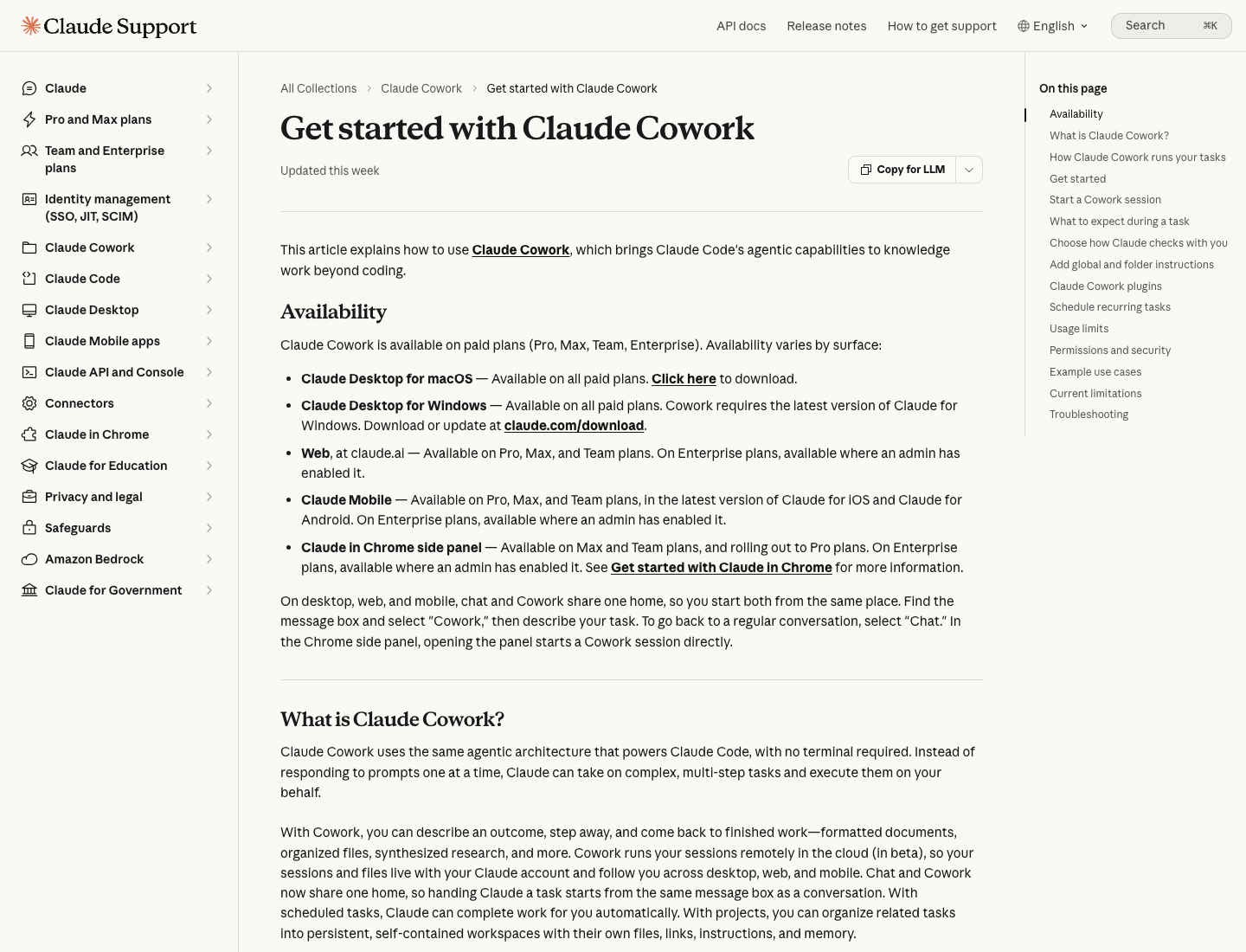
Claude's official Cowork guide confirms that Chat and Cowork share one home. Select Cowork beside the message box. Screenshot captured September 5, 2026.
Pass this step: Claude shows its plan and returns one weekly work plan with priorities and next actions.
Step 4: Add one simple preference
Do this after your first Cowork task works.
- Open Settings in Claude.
- Open the area for Claude's instructions or preferences.
- Add only the preferences you want Claude to use across your work.
- Save them.
Paste this and change the brackets:
Copy this
I am a [ROLE] working on [TYPE OF WORK].

When you help me:
- use plain language
- give numbered steps when I need to take action
- separate facts from assumptions
- ask before making a high-impact assumption
- make drafts easy to copy and edit

My preferred tone is [THREE PLAIN-LANGUAGE TRAITS].

Do not invent sources, quotes, customer facts, numbers, or results. Do not send, publish, purchase, delete, or change external data without my explicit approval.
Do not add pages of instructions on day one. One short preference block is easier to test and fix.
Things to know
Plans, pricing, usage allowances, menus, and availability can change. Check Anthropic's linked pages before paying or installing anything. Start without connectors or private data, then add access only for a task that needs it.
Step 5: Add Claude Desktop later
The web app is enough for the first task. Install Claude Desktop when you want Cowork to reach local files, your browser, or apps on your computer.
- Go to https://claude.com/download.
- Choose the official download for macOS or Windows.
- Install the app and sign in with the same Claude account.
- Start with one low-risk folder.
- Keep manual approval on while you learn what Claude can access and change.
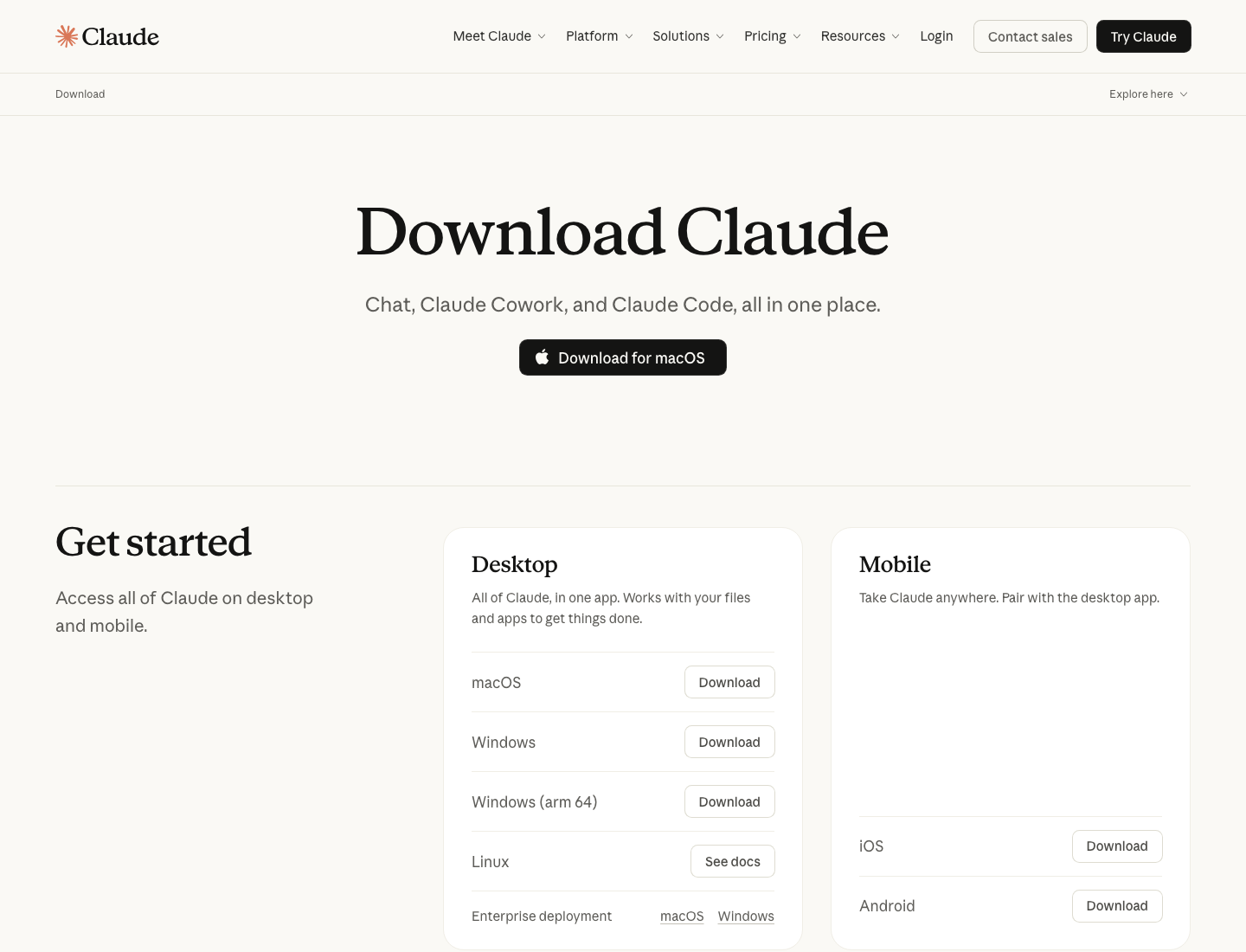
Download Claude only from Anthropic's official page. Screenshot captured September 5, 2026.
You can read Anthropic's current computer-use safety guidance at https://support.claude.com/en/articles/14128542-let-claude-use-your-computer-in-cowork.
Step 6: Add a plugin only when you need one
A Claude plugin is an optional package that adds instructions, tools, connectors, or specialist helpers. You do not need one to start Cowork.
When you have a specific job for a plugin:
- Browse https://claude.com/plugins.
- Pick one plugin tied to a task you already do.
- Read what it adds and what it can access.
- Install only that one plugin.
- Test it with low-risk information before connecting sensitive accounts.
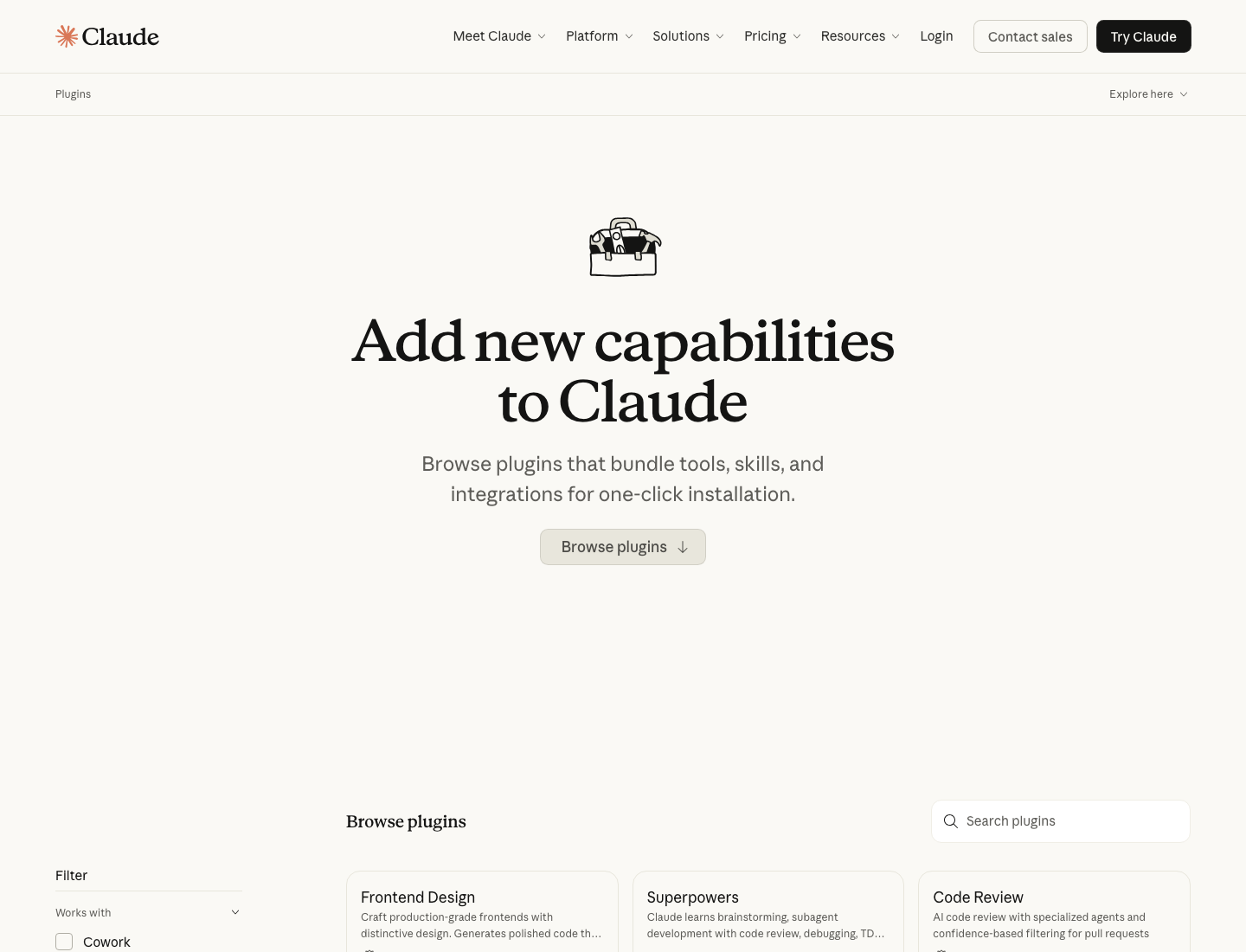
The plugin directory. Start with one plugin instead of installing a long list. Screenshot captured September 5, 2026.
Anthropic's step-by-step plugin instructions are at https://support.claude.com/en/articles/13837440-use-plugins-in-claude.
If you meant the Claude in Chrome extension, that is separate from a plugin. Use Anthropic's setup page at https://support.claude.com/en/articles/12012173-get-started-with-claude-in-chrome.
If something goes wrong
- Cowork is missing: Confirm that your account is on a paid plan, then reload https://claude.ai/new. Cowork availability can also depend on your account or organization settings.
- You are on the API Console: Return to https://claude.ai/. The Console and API billing are separate from the Claude web plan.
- Claude asks for a connector: Cancel the connection for your first test and use the starter task above.
- The task feels too large: Ask Cowork for one page or one file with a clear stopping point.
- Claude wants to take an outside action: Deny the request and change the task so the result stays inside Claude.
Final check
Your beginner setup passes when all five statements are true:
- You can sign in at https://claude.ai/.
- Your account shows the Pro plan.
- You can select Cowork beside the message box.
- Cowork shows you a plan before it starts working.
- Your first task finishes without a connector, plugin, API key, or access to sensitive data.
Once those are true, add Claude Desktop or one plugin for a real task you already understand.